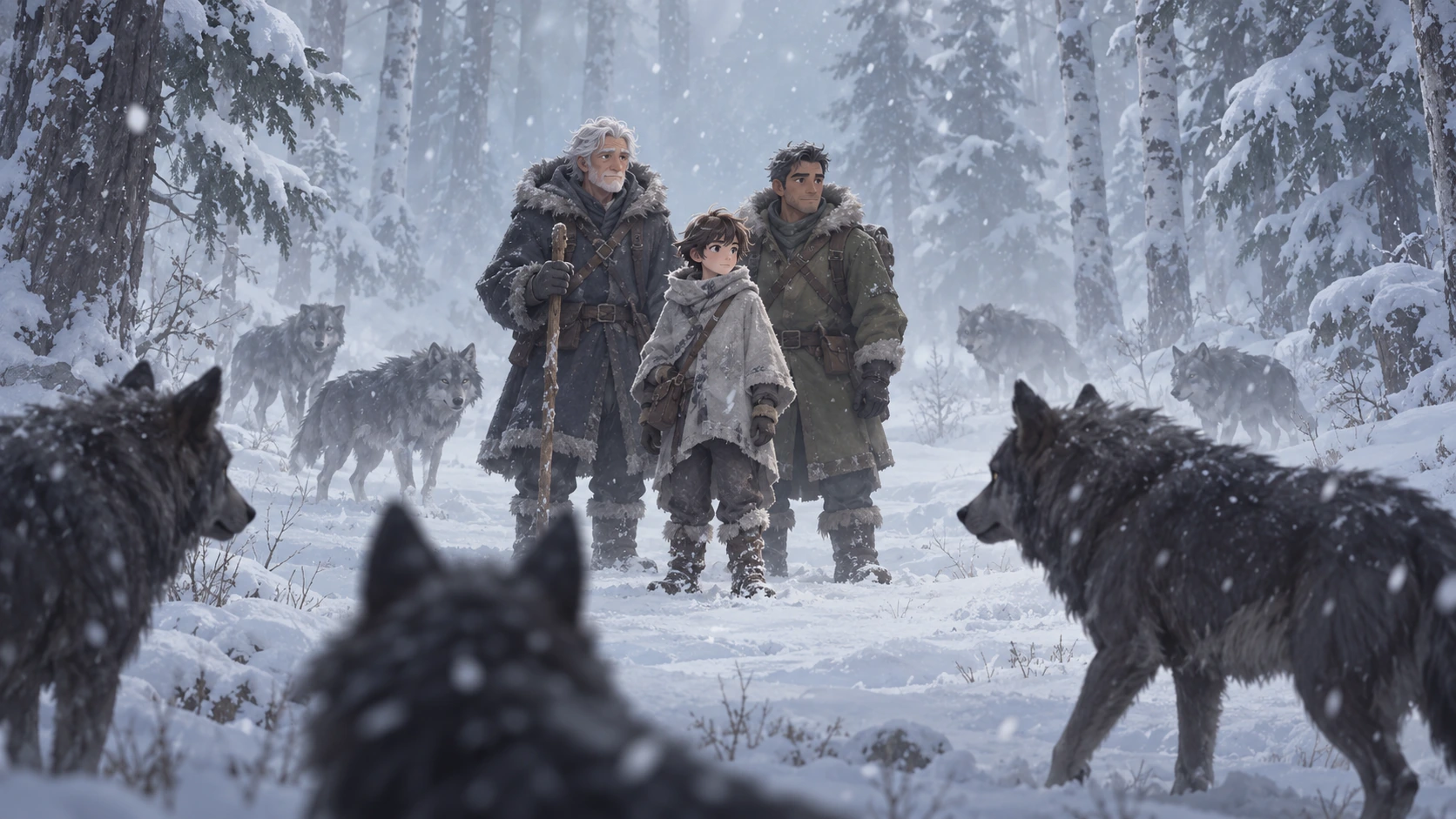
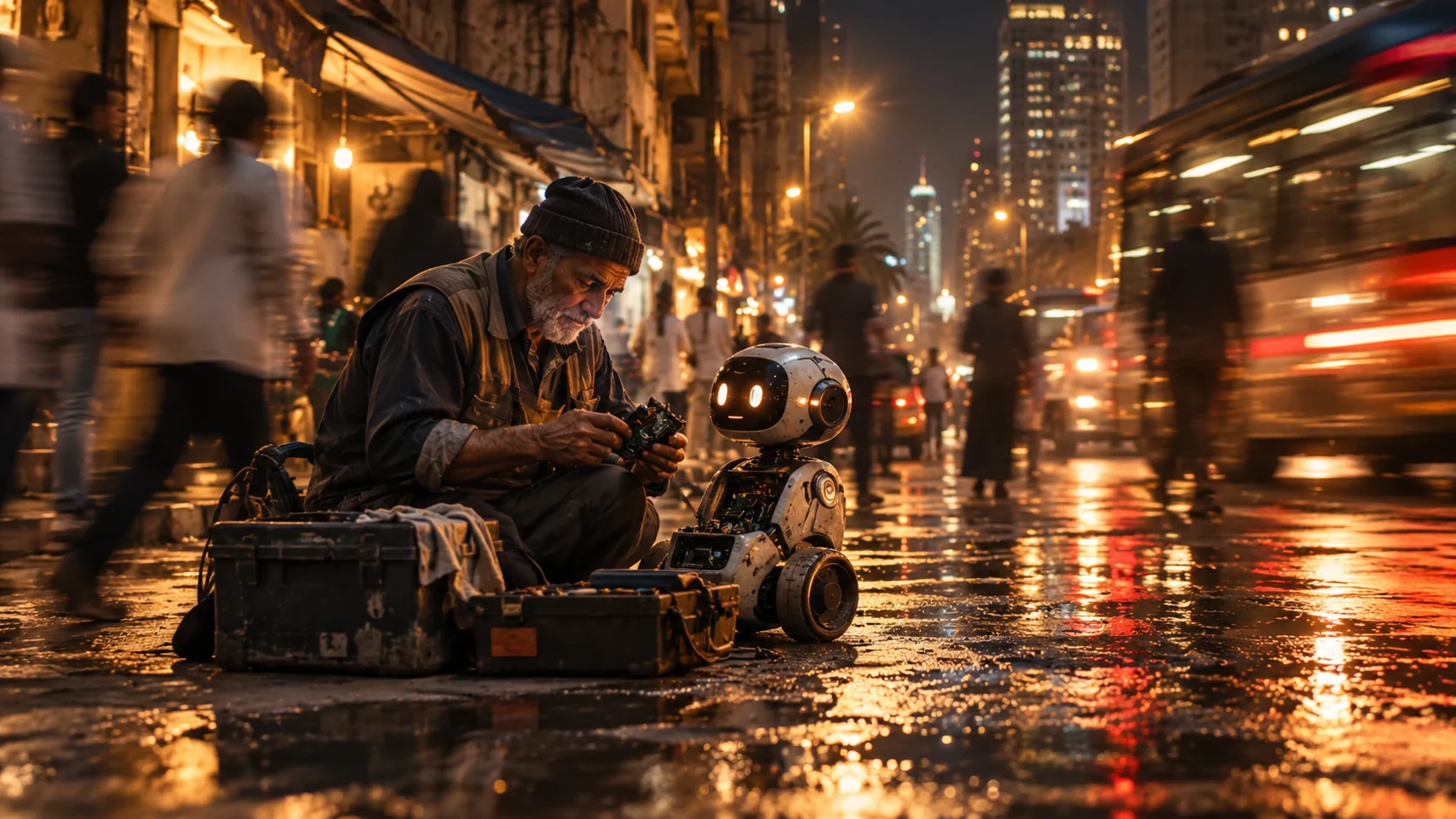
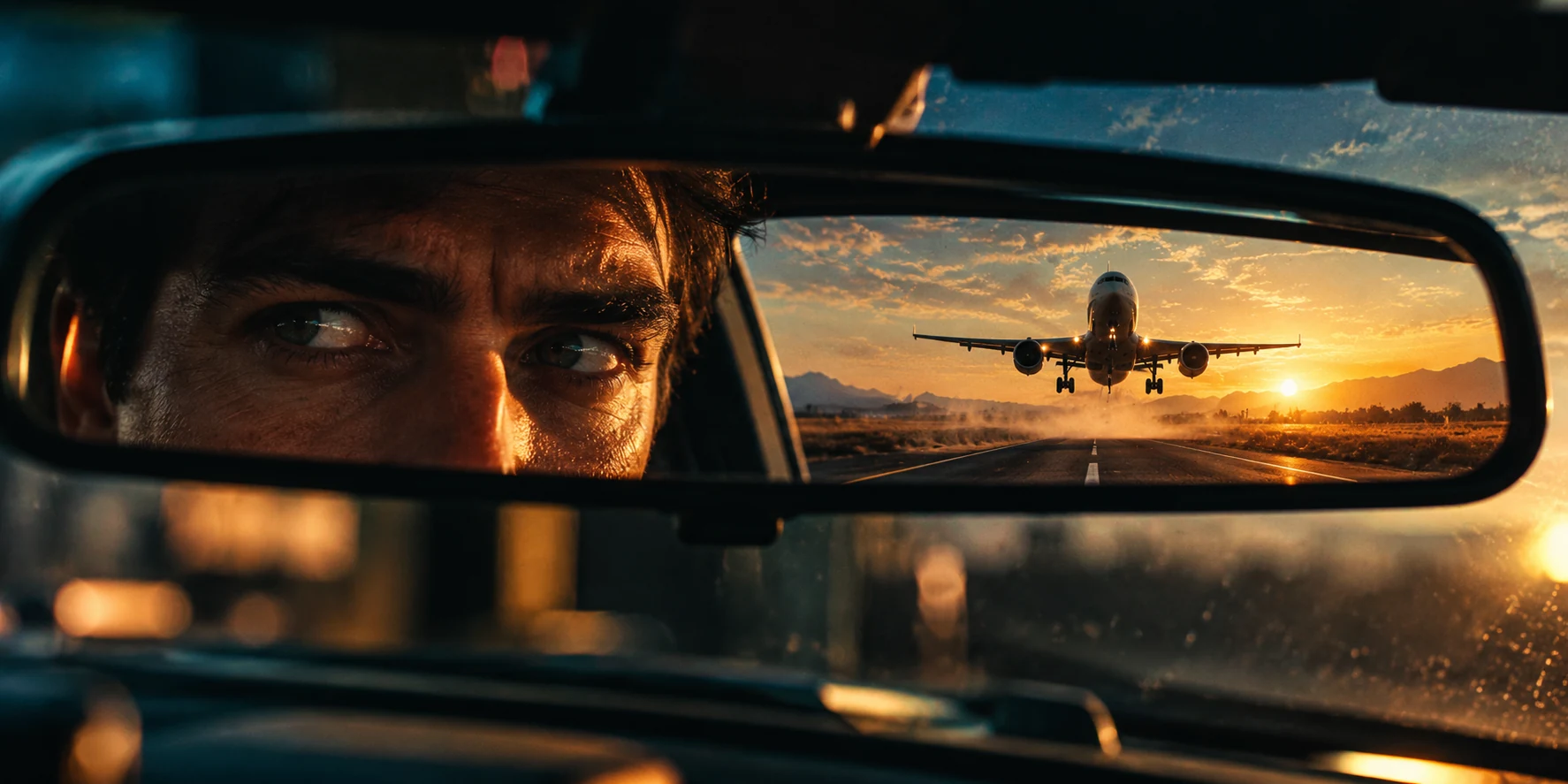
An AI image generator can turn a written idea into a visual, but the image still needs a clear brief. Whether you are exploring free AI tools, developing a cinematic scene, or revising a campaign concept, the useful starting point is deciding what the viewer should see. This guide shows how to build an image prompt with O4Prompts by OrigaStock, copy it into ChatGPT, and refine the result with specific creative direction. The surreal panda and traveler example demonstrates how subject, scale, atmosphere, and composition can work together.
What Is an AI Image Generator?
An AI image generator creates a visual from instructions, sometimes with reference images to guide the result. You describe the subject, setting, action, framing, and style, then review how the tool interprets those choices. The output might be a realistic scene, a conceptual illustration, a product composition, or a surreal montage.
An image prompt is the brief you give the generator. It should explain the relationships inside the frame: which subject is dominant, where the smaller subject stands, how the environment supports the story, and what the light reveals. A long description can still be ambiguous when those relationships are missing.
O4Prompts is a prompt generator, not an image generator. Use the website to develop the visual instructions, then paste them into ChatGPT or another compatible engine. The image is generated in the engine you choose.
Can You Generate Images in ChatGPT?
Yes. ChatGPT supports image generation and editing through natural-language instructions. You can also attach an image as visual guidance or an editing reference. OpenAI's official image generation guide explains these workflows and notes that availability and usage limits in ChatGPT web depend on your plan and workspace settings.
For this workflow, prepare the prompt in O4Prompts and open ChatGPT separately. Ask it to create an image and include the prepared instructions. If a reference matters, attach it and explain its role. A palette reference, a composition reference, and an image you want edited are different inputs.
This is a manual workflow: you copy the prompt from one website into the other. It does not require an automatic connection between O4Prompts and ChatGPT, and this guide does not assume one.
Choosing a Free AI Generator: What to Check
Searching for “AI generator free” often means you want to test an idea before paying for a tool. Check what the available access actually includes: image generation, the number of attempts, reference uploads, revisions, and export options. A free account does not necessarily provide unlimited image creation or every feature.
For ChatGPT, check the access and limits shown in your account. This article does not promise a fixed number of free generations. You can still prepare a precise brief before opening the engine, which makes each test easier to evaluate.
When testing free AI access, use one representative concept rather than many unrelated requests. Keep the same subject and format across the first few attempts. Decide whether the output meets your needs for framing, texture, and revision before expanding the project.
How to Use O4Prompts With ChatGPT
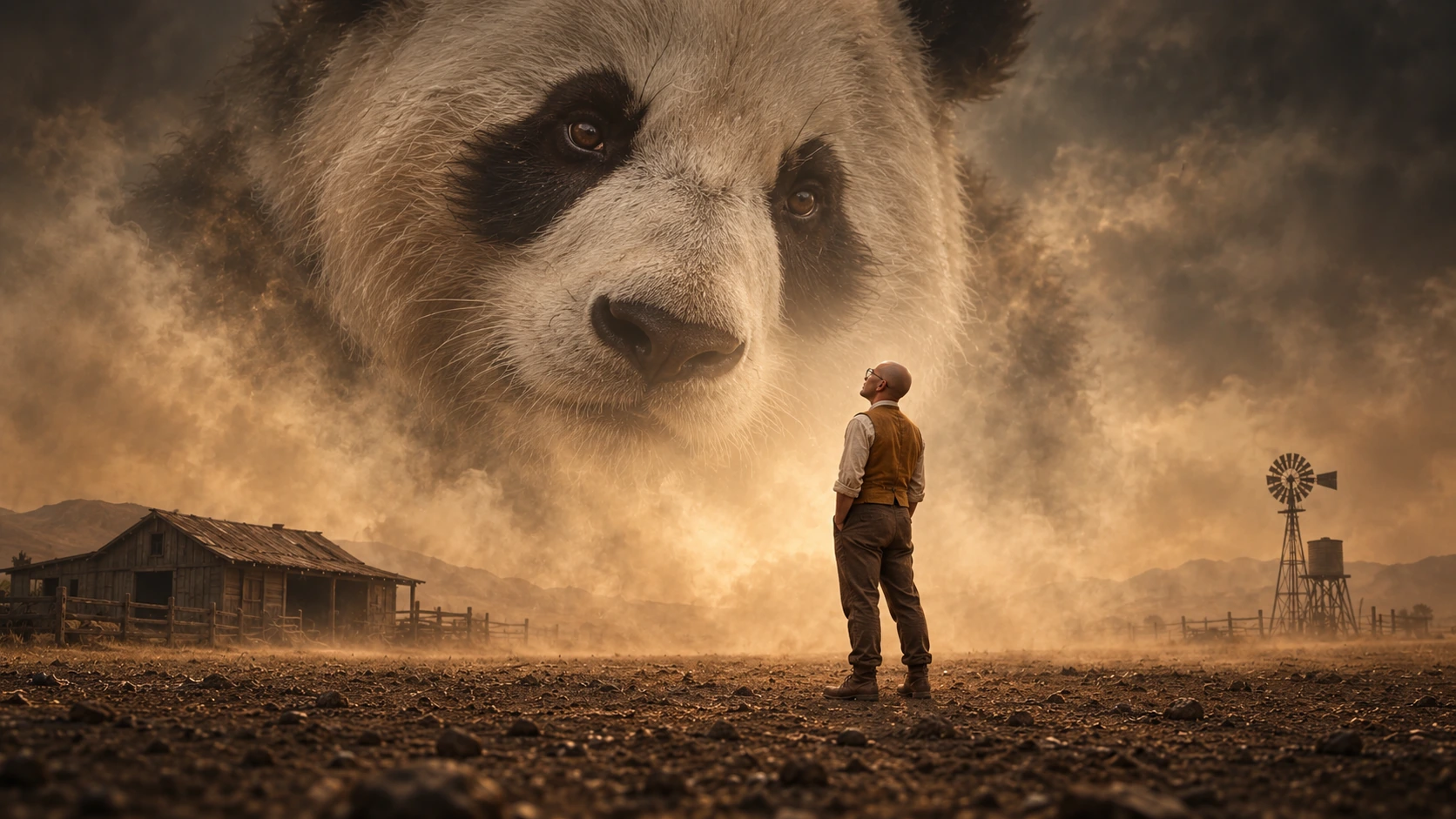
Start with the deliverable rather than a list of style words. For the example in this article, the deliverable is a landscape cinematic key visual: a miniature traveler stands in a dusty rural setting, while an enormous panda face emerges from the sky behind him.
- Define the idea. Write the subject, the story, and the intended format in one or two sentences. Choose a single visual moment.
- Build the shot. Use O4Prompts Cinematic Shots to develop the camera angle, distance, and photographic direction.
- Arrange the subjects. Use Composition Lab to describe the foreground, background, dominant shape, and space around the traveler.
- Coordinate the colors. Use Color Lab to express a warm sepia palette with ochre dust and restrained dark shadows.
- Generate the image. Copy the assembled prompt into ChatGPT, explicitly ask it to create an image, and attach a relevant reference if needed.
- Review and revise. Identify the most important visible issue and request a focused change. Keep the parts of the image that already work.
Save the final prompt with the approved result. If you return to the concept later, you will have the camera, palette, subject description, and atmosphere available rather than reconstructing them from memory.
Build a Cinematic AI Image With a Clear Visual Hierarchy
A surreal image becomes easier to read when its impossible element has a clear role. Here, the panda is an apparition in the dust, while the traveler remains physically grounded. The contrast in scale carries the concept. The barn, windmill, and earth establish the world without competing with the two main subjects.
Separate the subject from the atmosphere
Describe the panda's fur, markings, eyes, and scale, then explain how the face merges into the sky. Otherwise, the engine might place a large panda on the ground or create an animal body that the concept does not need. The traveler needs a separate description covering clothing, stance, and gaze.
Make the palette specific
“Warm sepia, ochre dust, deep brown earth, and soft amber backlight” is a usable direction. It connects the colors to visible elements. Keep the panda's markings recognizable while allowing the atmosphere to warm the white fur.
Give the scene material detail
The montage can be surreal while its surfaces remain believable. Ask for individual fur strands, worn cloth, weathered timber, cracked soil, and restrained film grain. The miniature traveler should have normal adult proportions and a convincing contact shadow, rather than looking like a plastic figure.
Example Prompt: Panda and Miniature Traveler
Use this as a starting brief and adapt it to your chosen framing. In ChatGPT, begin with an explicit request to create the image:
“Create a landscape cinematic image in a dusty rural setting. A miniature adult traveler stands in the foreground, full body visible, wearing a cream shirt, faded ochre waistcoat, brown trousers, and worn leather boots. He is bald, clean-shaven, and wears small round glasses. An enormous photorealistic panda face emerges from the dust-filled sky behind him, its fur and dark eye markings softly merging into the haze like a photographic montage. Keep the panda as a face in the sky, without a visible body. Use a low horizon, a distant weathered barn, a small windmill, warm sepia and ochre colors, soft amber backlight, realistic shadows, tactile materials, and subtle film grain. Preserve believable human anatomy and natural fur detail. No text, titles, credits, signs, logos, watermarks, borders, chicken, or rooster.”
The prompt distinguishes the physical foreground from the atmospheric background. It also defines the human's appearance and removes objects that would distract from the intended subjects. You can change the environment or the traveler without rewriting every visual rule.
For a companion view, ask for a slight three-quarter angle and let the traveler look toward the panda. Keep the clothing, warm palette, haze, and material texture consistent. Change the view deliberately so the second image adds another moment to the concept.
Using References Without Losing the Art Direction
A reference can help communicate the qualities that are hard to capture with a single adjective. Name those qualities explicitly: low horizon, dusty atmosphere, warm grading, realistic surface texture, and an oversized face layered into the background.
Then specify what changes. In this example, the large human portrait becomes a panda face and the foreground bird becomes a miniature adult traveler. The lighting and atmosphere still need to make sense after the substitutions. Fur catches light differently from skin, and boots need a grounded shadow.
OpenAI's image prompting guidance recommends identifying what an edit should change and what should remain, then checking the result. A clear editing instruction might be:
“Replace the large background face with a realistic panda face and the foreground bird with the described traveler. Preserve the warm sepia palette, dust, low horizon, light direction, and cinematic texture. Remove all lettering and poster graphics. Integrate the new subjects naturally into the scene.”
Check the entire frame after an edit. Look for leftover facial features, unwanted writing on the building, a cropped foot, mismatched shadows, or a panda face that feels pasted onto the sky. Describe the specific problem in the next request.
Improve the Result With Focused Revisions
A useful revision identifies something you can see. “Make it more cinematic” leaves the engine to choose which part to change. “Reduce the background detail, soften the panda's lower edge into the dust, and keep the traveler sharp” describes an observable result.
- If the panda looks cartoonish: request natural fur variation, softer highlights, and photographic animal proportions.
- If the traveler looks like a toy: request normal adult anatomy, realistic fabric, and a stronger contact shadow.
- If the montage looks flat: separate the crisp foreground from the hazier background and reduce distant contrast.
- If the setting is crowded: simplify the distant structures and keep one clear focal point.
- If the palette drifts: restate the sepia and ochre direction without introducing competing blue or neon lighting.
Preserve the approved subject, framing, and light when asking for these changes. Once the result meets the brief, keep it as the visual reference for the next related image.
What Changes for a Video AI Generator?
A video AI generator needs instructions for what happens over time. The still-image brief describes one frame; a motion brief adds subject movement, camera movement, pacing, and the ending state. Prepare those directions separately and use a compatible video engine for generation.
For this scene, a simple motion concept could keep the traveler still while dust moves slowly across the ground and the camera makes a restrained push toward the panda apparition. Avoid asking the traveler, camera, windmill, and background to perform unrelated actions at once.
Use the O4Prompts Video Prompt Builder to develop the action and Camera Movement to describe the shot. Copy the completed video prompt into your selected video tool. Preparing that prompt does not turn a still-image request in ChatGPT into a video-generation workflow.
Frequently Asked Questions
Can I use O4Prompts with any image generator?
You can copy the visual instructions into a compatible image engine. Adapt the wording, aspect ratio, references, and available controls to the engine you use. O4Prompts prepares the prompt; the selected engine creates the image.
Can I make an AI image in ChatGPT?
Yes, when image generation is available in your account. Ask ChatGPT to create an image, paste your prompt, and attach a reference when it helps. Access and usage limits depend on your plan and workspace settings.
Does a free AI generator guarantee professional results?
No. Judge the result against the brief. Check composition, subject anatomy, materials, lighting, unwanted text, and whether the image communicates the intended idea. Review remains part of the process regardless of the access tier.
Should an image prompt be very long?
It should contain the decisions needed for the result. A short, coordinated description can be more useful than a long list of conflicting styles. Add detail when it resolves a visible ambiguity.
How do I keep two images consistent?
Repeat the subject description, palette, lighting, atmosphere, and material rules. Use the approved image as a reference where supported. Change the angle or action deliberately, then compare the new result with the established direction.
Does O4Prompts generate the image inside its website?
No. O4Prompts generates prompts. Prepare your creative direction on the website, copy it into ChatGPT or another compatible generator, and review the image there.
Start your next visual with a clear subject, a readable composition, and one coordinated art direction. Build the brief with O4Prompts, then use your chosen image generator to test and refine it.