Seedance 2.5 brings new possibilities for longer videos and richer references, but a useful comparison with Seedance 2.0 starts with a clear creative brief. What should the character do? Which details must remain consistent? How should the camera move? O4Prompts by OrigaStock helps you prepare those instructions. This guide uses an original orange tabby driving a futuristic vehicle to explain the model differences and a practical prompt workflow.
Seedance 2.5 vs 2.0: What Has Changed?
Seedance 2.0 accepts text, image, video, and audio references and supports clips up to 15 seconds. Seedance 2.5 extends the maximum clip length to 30 seconds and increases reference capacity.
The comparison below follows Higgsfield's official Seedance guide. It also describes a separate Seedance 2.5 Edit option for modifying existing clips, including audio.
| Model-level capability | Seedance 2.0 | Seedance 2.5 |
|---|---|---|
| Single-pass clip length | Up to 15 seconds | Up to 30 seconds |
| Image references | Up to 9 | Up to 30 |
| Video references | Up to 3 | Up to 10 |
| Audio references | Up to 3 | Up to 10 |
These are the limits described in Higgsfield's current guide. Available settings, resolutions, and access requirements depend on the selected model and account. Check your generation interface before planning a project around the maximum numbers.
Start with a Character and a Visible Moment
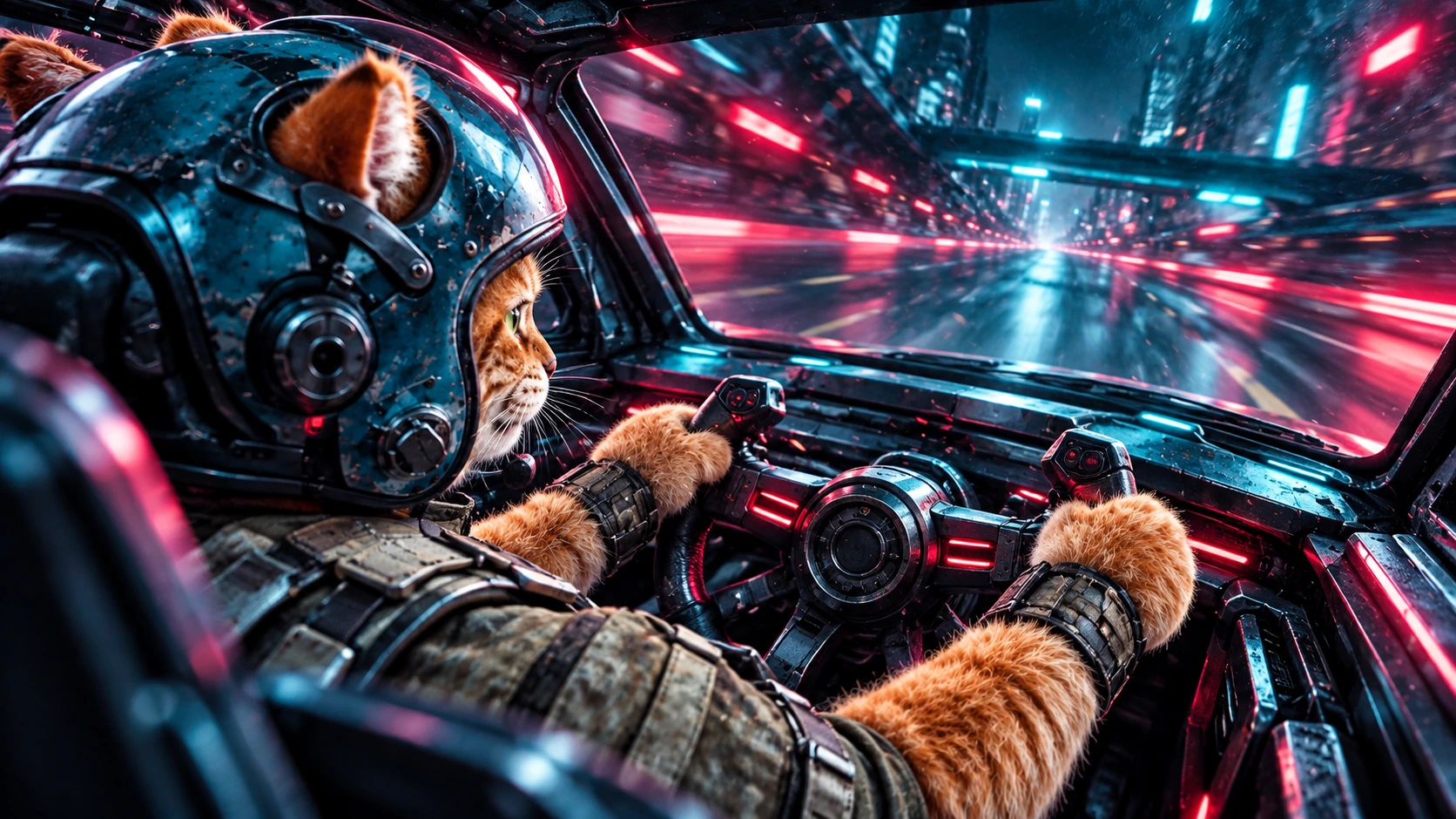
Our example is an orange tabby with green eyes, a cream muzzle, detailed striped fur, and an adapted teal driving helmet. The cat sits in a dark futuristic cockpit with an olive-gray suit and a restraint harness. Both front paws rest on a steering wheel.
The moment is small: the cat makes a slight steering correction as colored city lights slide past outside. Its expression remains focused, the helmet catches reflections, and the cockpit moves subtly with the vehicle. That gives the shot something to communicate without demanding several complicated events.
Write the intended ending before generating. The steering wheel returns toward its starting position and the cat settles into a steady forward gaze. A defined ending makes it easier to select a usable clip and connect it to another shot.
Build the Reference Frame with O4Prompts
O4Prompts generates prompts for images and videos. Prepare the visual instructions on the website, then copy them into a suitable image generator to create the reference still. Use that approved image in Seedance where your chosen platform supports image or reference inputs.
Use O4Prompts Cinematic Shots to define the close three-quarter view, helmet reflections, lighting, and texture. The cat's face should remain readable while its paws and steering wheel explain the driving action.
Use Composition Lab to arrange the head, wheel, foreground arms, and cockpit frame. Use Color Lab to coordinate cyan highlights with magenta-red background light. Keep enough natural fur color visible for the cat to remain recognizable.
Example image prompt
“Create a cinematic, photorealistic fantasy image of an anthropomorphic orange tabby driving a futuristic vehicle. The cat has green eyes, a cream muzzle, striped fur, and whiskers. It wears a weathered teal-blue open-face driving helmet adapted around its ears, an olive-gray driving suit, and a restraint harness. Its furry forearms extend toward a steering wheel held in two feline paws. Use a close three-quarter passenger-side view, with the head on the left and the wheel in the lower foreground. Dark cockpit metal catches cyan reflections, with soft magenta-red light behind the seat and blurred city lights outside. Preserve realistic fur and tactile materials. No human hands, text, logos, or watermarks.”
Approve the still before adding movement. Check the paws, the wheel's shape, the helmet openings, and the relationship between the driver's body and the seat. A visible problem in the reference can carry into the animation.
Keep the Cat Consistent in a New Camera Angle
A second shot should show the same character from a genuinely different viewpoint. An over-the-shoulder view can reveal the cockpit and the direction of travel while preserving the cat's ears, helmet, suit, and striped forearms.
Describe the new camera position explicitly: behind the driver's shoulder, looking toward the wheel and windshield. Keep the approved character description alongside that instruction. Changing the viewpoint should reveal another side of the existing scene.
Give each reference a clear role when the platform supports multiple inputs. One can establish the character and materials; another can establish the desired composition. Avoid supplying conflicting helmets, fur patterns, or cockpit designs and expecting the model to resolve them automatically.
Write Motion Separately from Appearance
Use the Video Prompt Builder to describe what changes during the shot. Keep the action modest at first: a small steering correction, a slight shift in attention, and light moving over the helmet.
Use Camera Movement to choose one camera behavior. A camera fixed inside the cockpit gives you a useful first test of the character's performance. A small controlled push can work later when you want to emphasize its expression.
Example Seedance video prompt
“Use the approved orange-tabby cockpit image as the visual reference. In one continuous shot, the cat keeps both paws on the steering wheel, makes one small steering correction, and settles into a focused forward gaze. Its striped forearms, whiskers, green eyes, teal helmet, suit, and harness remain consistent. Colored city lights slide past outside and cast moving cyan and red reflections across the cockpit metal. Keep the camera fixed at the approved passenger-side angle with subtle vehicle vibration. End with the wheel steady and the cat holding its gaze. Audio: a quiet engine hum and a gentle passing-air sound, with no dialogue or music. No cuts, human hands, extra characters, text, or logos.”
Set duration, resolution, and available audio controls in the generation tool. Adjust reference labels to the interface you are using. Prompt wording gives direction, and the resulting performance still needs review.
Use a Manual O4Prompts-to-Seedance Workflow
On Higgsfield, select the Seedance version and reference mode available in your model picker. Model access, output options, and account requirements vary, so check the current choices in your interface.
- Prepare the image direction. Define the cat, cockpit, framing, palette, and materials with O4Prompts.
- Create and approve a still. Generate it in a suitable image tool and correct visible issues.
- Prepare the motion prompt. Describe one action, one camera behavior, and a clear ending.
- Select Seedance. Choose the version and input mode available in your generation platform.
- Supply the reference and settings. Upload the supported assets and set the desired duration and output controls.
- Generate and review. Inspect the full clip, then make a focused revision if needed.
This is a creator-led process: copy the prompt, provide the reference, generate the clip, and assess the result. Save the chosen prompt and settings with the approved output so the next revision has a clear starting point.
Compare the Versions with the Same Creative Brief
For your own comparison, begin with a short duration supported by both versions. Use the same cat reference, prompt, aspect ratio, and comparable settings. If some controls differ, record that difference alongside the results.
Review the details that matter to this particular shot: the cat stays feline, both paws remain attached to the wheel, the helmet keeps its shape, and reflections move coherently. Listen for whether the sound supports the driving moment.
Compare more than a single result when the decision matters, since generations can vary. Record how much correction each usable clip needs. You are evaluating whether a version serves your scene and workflow, rather than assuming a newer label settles every creative question.
Longer generation and more reference inputs may help a larger sequence, but the first cat-driver test can remain simple. Expand the brief after the character, action, and camera behave as intended.
Finish the Sequence with Continuity and Sound
Combine the close passenger-side shot with the alternate cockpit viewpoint when each adds useful information. The closer shot shows concentration; the second view can explain the vehicle's movement through the environment.
Check fur markings, helmet color, paw placement, wheel proportions, and light direction across the edit. Match the sound between clips so the engine does not suddenly change character at a cut. Trim to the action and give the ending enough time to read.
Keep the original references and notes with the final edit. When a detail drifts in a later shot, a specific correction is easier to make with the approved visual rules available.
Frequently Asked Questions
Is Seedance 2.5 automatically best for every shot?
Choose according to the features available on your platform and the results of your own brief. Longer clips and expanded references are useful when the project needs them.
Can O4Prompts generate the reference image or video?
O4Prompts creates the prompts. Use a suitable image generator for the still and your selected Seedance workflow for video.
How do I stop the cat from developing human hands?
Approve a reference with clear feline paws, repeat that requirement in the motion brief, and inspect the full clip. If the interaction drifts, simplify the steering action and revise the visible issue.
Make the creative decisions before comparing the outputs. Build a clear character, frame, and motion brief with O4Prompts, then use your chosen Seedance version to develop a shot you can evaluate and refine.