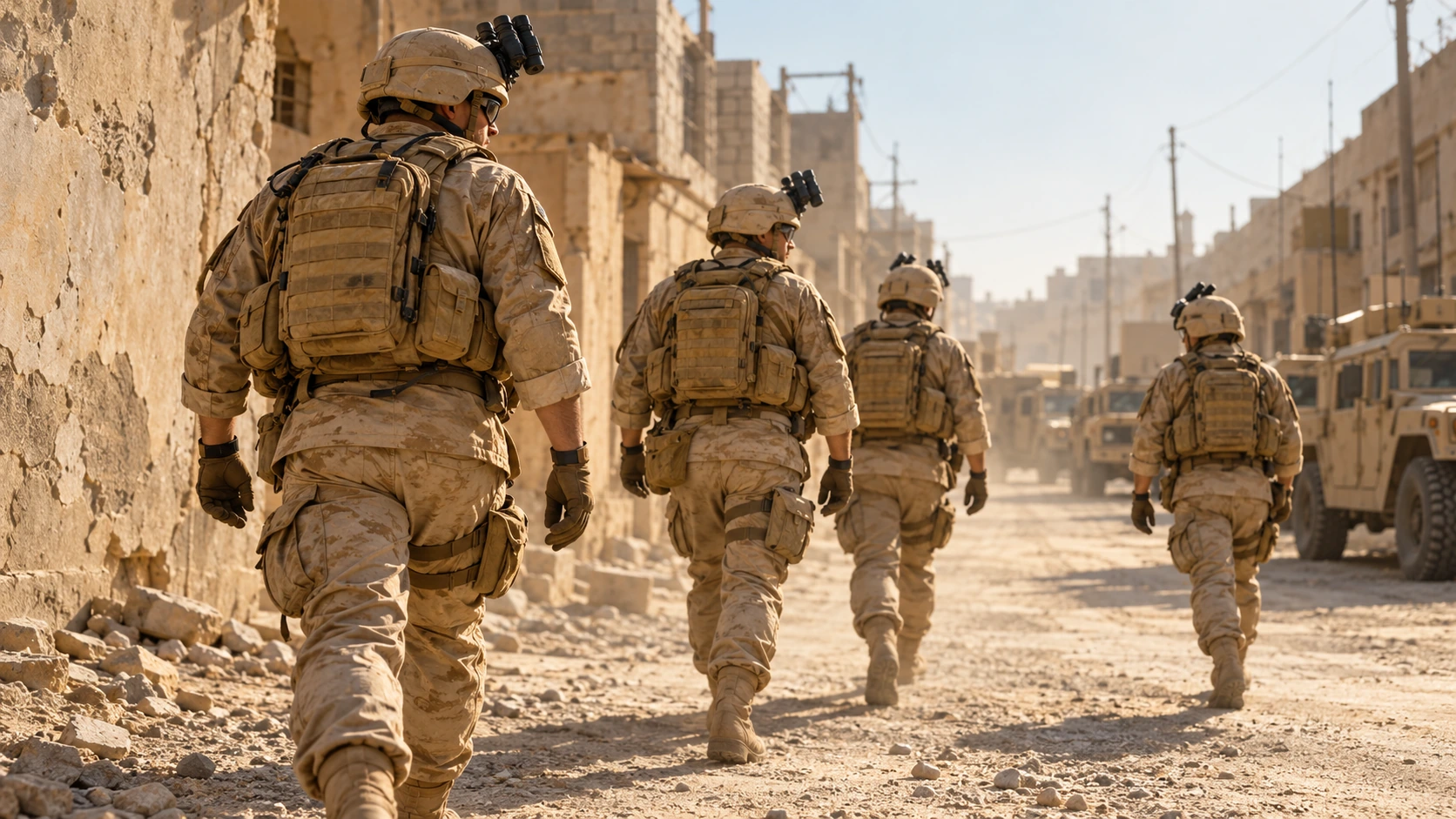
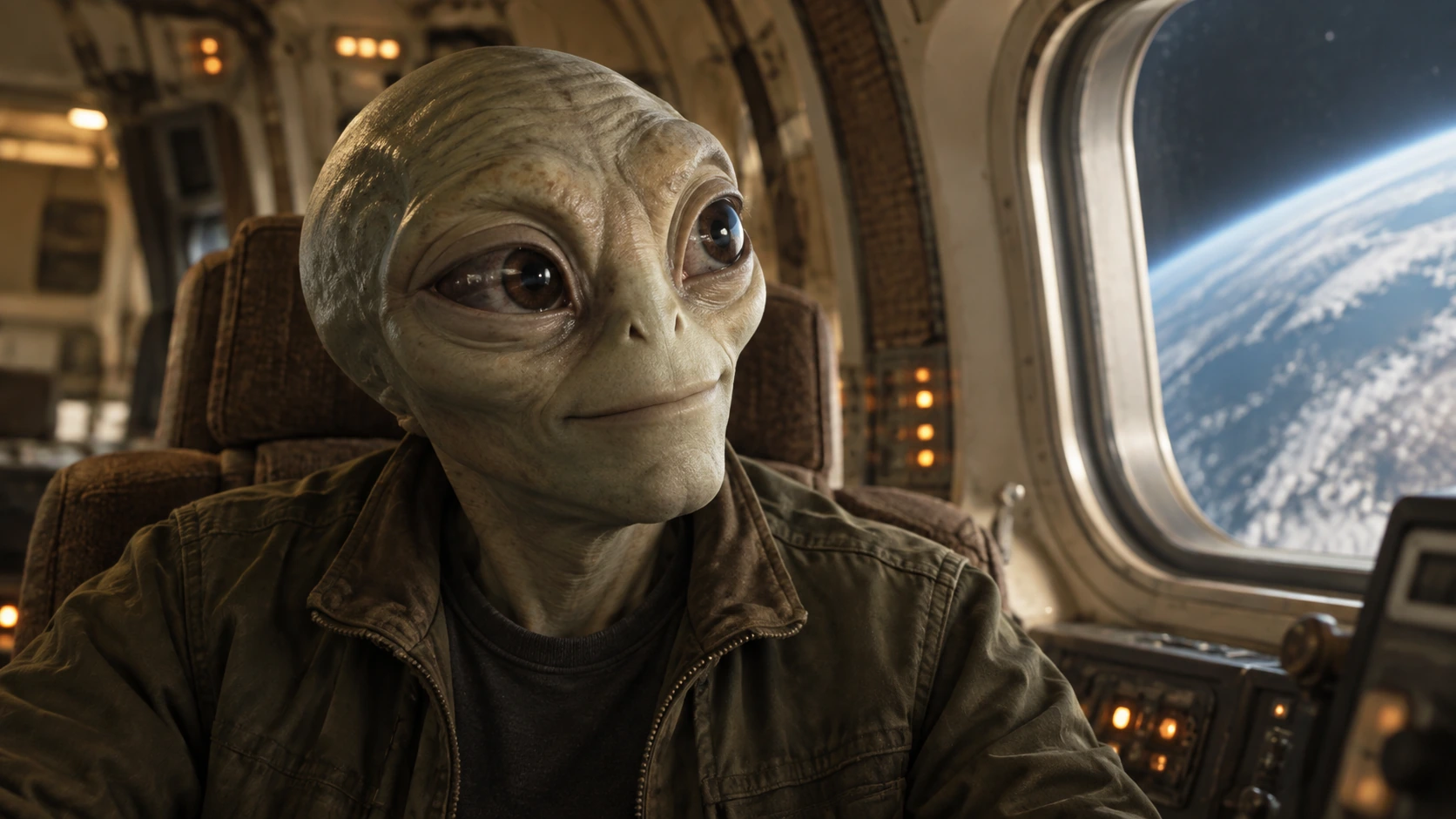
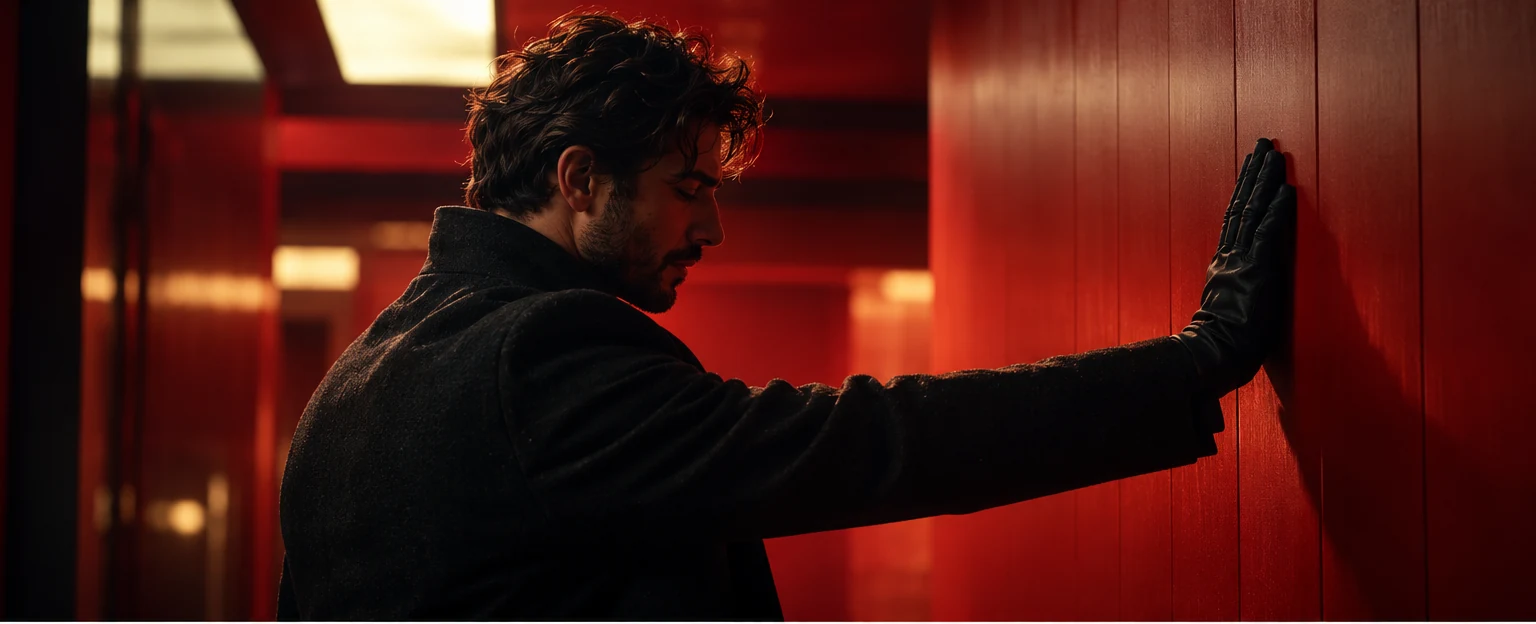
Searching for an “ai generator image” tool is often the first step toward turning an idea into a visual. Choosing the platform matters, but the instructions you give it matter too. A clear prompt defines the subject, composition, camera, light, and mood before generation begins. This guide shows how to build those instructions with O4Prompts by OrigaStock, then use them in ImagineArt or another compatible image engine.
What Does “AI Generator Image” Mean?
The search phrase usually refers to an AI image generator: a tool that creates visuals from instructions, and sometimes from a reference image. A prompt describes what you want the image to show and how it should look. The generation engine interprets those instructions and produces the visual.
O4Prompts is a prompt-building platform. It helps you develop the creative direction and wording for your image. You then copy the prompt into the image-generation platform you choose. O4Prompts does not render the image, and this workflow does not require an automatic connection between the two websites.
The distinction gives you flexibility. You can keep a useful creative brief while testing different engines, adjusting the prompt to each model's supported inputs, controls, and behavior. The same wording can be a starting point across platforms without guaranteeing identical results.
From a Prompt Generator to an Image Generator
Think of the process as a sequence of creative decisions. First, decide what the image should communicate. Next, describe the frame. Then choose an engine and review the result. Changing the platform is easier when your visual direction is already clear.
For example, “a cinematic portrait of a man” defines a subject and a broad style. It leaves the model to choose the man's age, expression, clothing, camera distance, environment, palette, and lighting. If those decisions matter to the project, put them in the brief.
A more useful starting point is a middle-aged man in a worn blue waistcoat, framed at eye level inside a quiet historical interior, with soft window light and a subdued blue-and-beige palette. The description is stronger because its details work together to create one believable scene.
Use the right O4Prompts tool for the decision
- Cinematic Shots helps you develop the shot's framing, camera perspective, and cinematic direction.
- Composition Lab helps organize the subject, focal point, balance, and negative space.
- Color Lab helps describe the palette and its relationship to the scene's mood.
Use the elements that support your idea. A close portrait may need careful light and texture, while an environmental wide shot may need stronger spatial relationships. A long prompt is not automatically a clear prompt.
Using Your O4Prompts Prompt in ImagineArt
ImagineArt offers image-generation and editing tools alongside video and other creative features. You can use it as the generation platform after developing your prompt in O4Prompts. Select a suitable model or image tool from the options currently available in your account.
- Build the direction: define your subject, composition, camera, light, colors, and important constraints in O4Prompts.
- Copy the prompt: keep the wording focused on what must appear in the frame.
- Open your image engine: choose ImagineArt or another platform that supports the task.
- Set the available controls: choose the aspect ratio and any model-specific settings separately where the interface provides them.
- Add a reference when supported: explain which visual qualities to preserve and which details to change.
- Generate and review: identify one visible issue, revise its instruction, and compare the next result.
This is a manual workflow. Your prompt carries the creative direction; the selected engine determines how that direction is interpreted. If a platform handles references or negative instructions differently, adapt the wording and controls before judging the concept.
How to Write a Cinematic AI Image Prompt
A cinematic image feels intentional when its parts agree. The camera position supports the subject's presence. The light has a plausible source. The background gives context without overwhelming the focal point. Materials behave like fabric, skin, stone, or metal rather than sharing one artificial shine.
1. Define the subject and moment
Describe the subject's age range, expression, clothing, posture, and action where relevant. “A middle-aged man looking directly at the camera with a restrained, thoughtful expression” is more useful than a stack of adjectives such as “epic, beautiful, premium, dramatic.” Decide what the viewer should read in the face.
2. Give the composition a purpose
Choose a close-up, medium shot, or wider environmental frame. Specify eye level or another camera position only when it supports the idea. A centered portrait can feel direct and quiet; a subject placed toward one side can leave space for the environment or campaign copy added later.
3. Motivate the light
Describe where the light comes from and how it falls across the scene. A tall window on the left can create soft highlights on one side of the face and gentle shadows on the other. Keep background illumination consistent with that source so the subject belongs in the room.
4. Describe texture instead of asking for perfection
For a natural portrait, include visible pores, fine forehead lines, slight unevenness in skin tone, believable hair, and unpolished fabric. For the environment, consider worn wood, aged stone, or imperfect window glass. Review the generated result for exaggerated detail as well as excessive smoothing.
5. Limit the palette and background
Choose a small set of coordinated colors. Muted blue-gray shadows, warm beige highlights, and restrained saturation can support a historical-film atmosphere. Keep the background softly separated from the face, with only enough detail to explain the setting.
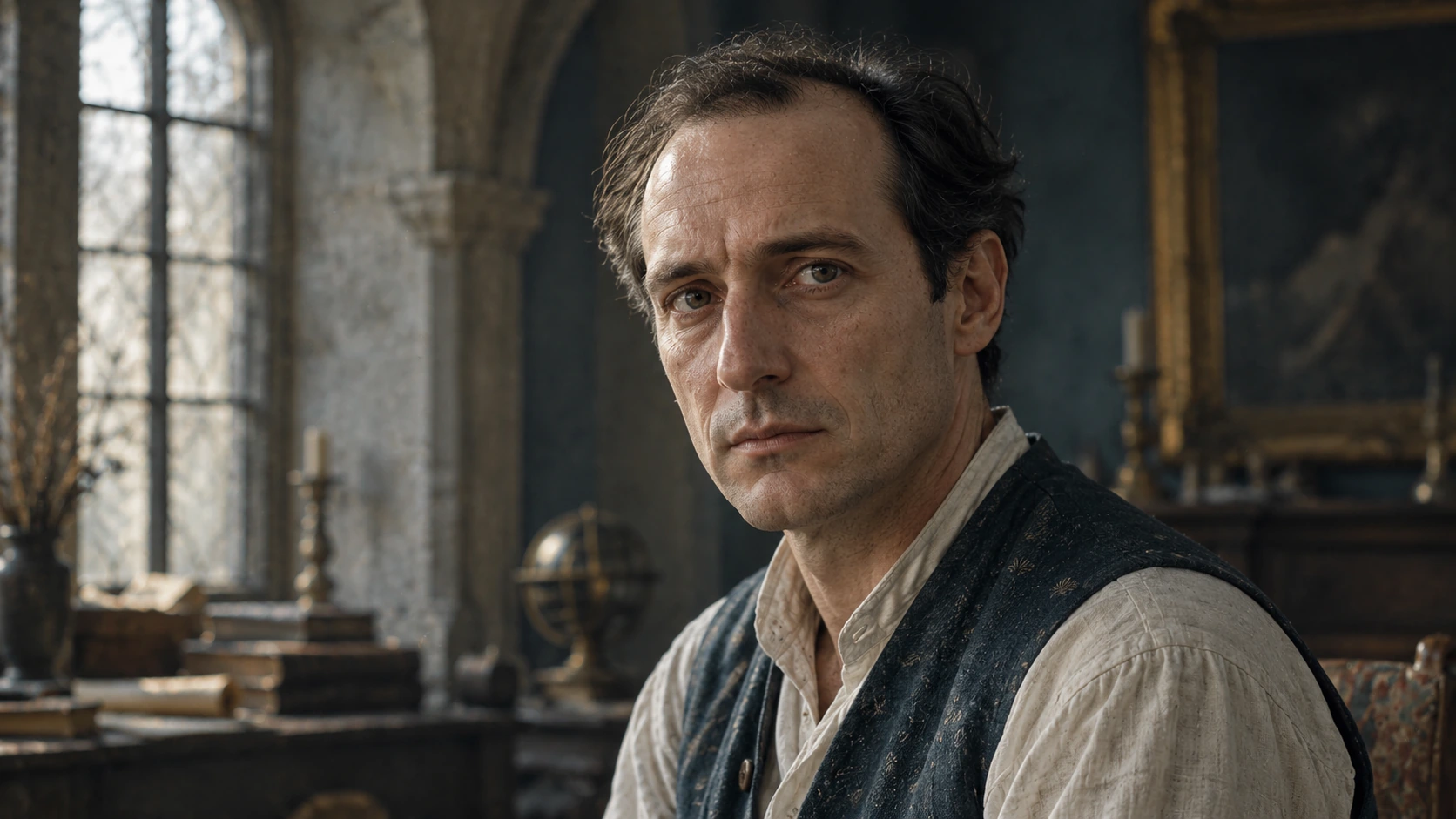
Example Prompt: A Natural Cinematic Portrait
Start with a short brief: “A quiet portrait that feels like a frame from a historical film.” Build the image around restraint. Use a neutral expression, simple clothing, one motivated light source, and a background that supports the period atmosphere.
Here is a prompt you can adapt to your chosen image engine:
“Cinematic medium close-up portrait of a middle-aged clean-shaven man with a receding dark hairline, a neutral thoughtful expression, and a direct gaze. Off-white linen shirt under a faded blue woven waistcoat. Eye-level camera, natural facial proportions, subject clearly separated from a softly blurred historical interior with aged stone, dark timber, and a tall window. Soft window light from the left, gentle shadow transitions, warm beige highlights and muted blue-gray shadows, restrained saturation and filmic contrast. Visible natural pores, fine forehead lines, subtle skin unevenness, realistic hair, worn fabric texture, delicate film grain. Grounded photographic realism, no plastic skin, no synthetic sheen, no exaggerated beauty retouching, no text, no logos, no watermark.”
Set the aspect ratio in the engine's interface when that option is available. If the background distracts from the face, simplify it. If the skin looks waxy, reduce the emphasis on polished beauty and restate the natural material direction. If the expression feels theatrical, ask for less tension around the eyes and mouth.
The prompt is an example of art direction, not a guarantee that every model will reproduce the same photograph. Keep the useful decisions and revise the parts your selected model handles poorly.
AI Generator Image Free: What to Check
Free access can be useful for trying a direction before paying for more generations. ImagineArt's terms describe free access with limited features or quotas alongside paid plans, and note that some tools use credits. Check the current ImagineArt plans for the features and allowances available to you.
When comparing a free image generator, look at the practical result: whether the available model suits your style, whether the output is large enough for the intended use, and whether its export options fit your workflow. A free test is most useful when it answers a specific creative question.
What about free access with no sign-up?
Do not assume that a free tool also requires no account. ImagineArt's official terms state that most features require registration. Confirm access requirements before planning a workflow around a “free no sign up” search result.
What does “no restrictions” mean?
Distinguish creative controls from usage rules. A platform may offer several styles and models while still applying quotas, account requirements, and acceptable-use policies. ImagineArt also has an acceptable-use section in its terms. A search phrase is not evidence that a provider offers unrestricted access.
Taking an AI Image to Video
ImagineArt's creative suite includes image-to-video tools. A useful starting frame gives the next stage a clear subject, setting, and visual direction. Develop the still image first, then describe the movement you want instead of rewriting the entire scene as a video prompt.
For the portrait example, keep the action small: a subtle breath, a slight shift of the gaze, and a slow camera push toward the subject. Decide whether the shot should stay almost still or reveal more of the room. Large movements can change the feeling of a quiet portrait.
Use the O4Prompts Video Prompt Builder to organize the scene and action. Use Camera Movement to develop the shot's motion. Copy the resulting instructions into a compatible video engine, then adapt them to its controls.
Example motion direction: “Slow, restrained camera push-in toward the man. He remains seated, breathing naturally, with a barely perceptible change in his gaze. Preserve the window-light direction, quiet expression, muted palette, and historical interior. No sudden camera movement or exaggerated facial motion.”
If you are searching for free image-to-video generation, check video access separately from image access. Choose a short test that helps you judge motion and consistency before committing to a longer sequence.
Review the Image Before Adding More Detail
A useful review looks at the result in the order the viewer experiences it. First, check whether the main idea reads. Then inspect the face, framing, light, and background. Finally, review small details at the size where the image will actually be used.
- Message: does the expression and scene communicate the intended mood?
- Composition: is the subject positioned clearly, with appropriate breathing room?
- Light: do the highlights and shadows belong to the same environment?
- Materials: do skin, fabric, and background surfaces look distinct and believable?
- Consistency: did the revision preserve the details you asked to keep?
Write the next instruction around one issue. “Keep the face, pose, clothes, camera, and palette; simplify only the background” gives the next test a clear target. Save the prompt with the result so the direction is easier to reuse.
Build your next image brief with O4Prompts Cinematic Shots, then take the prompt to the generation engine you prefer. Keep the art direction deliberate and let each revision solve a visible problem.
Frequently Asked Questions
What does “ai generator image” mean?
It usually means an AI image generator: software that creates visuals from a prompt and, where supported, a reference image.
Does O4Prompts generate the image?
No. O4Prompts helps you build the prompt. Copy that prompt into ImagineArt or another compatible image engine to generate the visual.
Can I use an O4Prompts prompt in any image engine?
You can use it as a starting point in engines that accept text prompts. Adapt the wording, references, and settings to the selected model; outputs will vary.
Can I generate AI images free with no sign-up?
Free access and registration requirements depend on the provider. ImagineArt describes limited free access, while most features require an account.
How do I avoid plastic-looking faces?
Describe natural skin texture, believable lighting, and restrained retouching. Review the output and revise the specific texture or lighting issue instead of repeatedly adding “realistic.”
Can I turn an AI image into a video?
With a compatible image-to-video tool, you can use a still image as the starting frame. Add a focused motion prompt and check the tool's current capabilities and access requirements.
How long should an AI image prompt be?
Use enough detail to define the important visual decisions. Remove repetition and conflicting instructions. The useful test is whether each sentence helps explain the image you want.