An expressive character, a clear running pose, and a camera that knows where to look can turn a simple idea into an engaging AI cartoon animation. This guide uses an original rabbit courier sprinting through a city to show how to plan a short animated scene. Build the visual and motion prompts with O4Prompts by OrigaStock, create the reference images in your preferred generator, and develop the approved frames into video.
Give Your Cartoon Character One Clear Goal
A short cartoon works best when the viewer can understand the action quickly. Our rabbit courier wants to reach his destination before a delivery window closes. The scene follows his determined run through a bright city street, with a small change of pace at the end to show that he has arrived.
That goal gives you a reason for his forward lean, pumping arms, alert expression, and backpack movement. It also helps you choose camera positions. The front view communicates determination; a view from behind reveals the route he is taking.
Keep the first sequence manageable. Start with one character, one location, and one main action. Once those parts work together, you can introduce a second character, a comic interruption, or a more complicated route in another scene.
Write a short creative brief before generating anything: “An original rabbit courier runs along a sunlit city boulevard, keeps his focus, and slows as he reaches his destination.” Use that sentence to decide whether each later shot contributes to the story.
Design an Original Character You Can Recognize
Give the runner a few clear visual anchors. Our character has slate-gray fur, a cream muzzle, hazel eyes, and long ears that sweep backward as he runs. He wears a mustard-yellow lightweight jacket, navy cargo shorts, white high-top sneakers with teal accents, and a small teal backpack.
The jacket separates him from the cooler city background. His long ears and small backpack help make his silhouette readable, while the cream muzzle gives the face a lighter area for the expression. Keep these choices stable across the reference frames.
Use an original design and clothing combination. A familiar type of character, such as an animal courier, gives you a useful starting point; your own proportions, expression, outfit, and setting give the scene its identity.
Save a compact character description beside your approved image. Repeat it when requesting another angle, then compare the result carefully. Consistent wording helps express your intent, but the generated details still need review.
Build the Centered Running Frame with O4Prompts
O4Prompts generates prompts for images and videos. Use the website to organize the visual instructions, then copy the prompt into a compatible image generator. The approved still becomes the reference for your animation where the video tool supports image inputs.
Use Cinematic Shots to define the low camera position, expressive 3D cartoon finish, lighting, and depth. Use Composition Lab to place the runner in the center with enough room for his ears, feet, and stride. Use Color Lab to coordinate the mustard jacket, teal details, and warm highlights against cooler city shadows.
A centered hero should remain easy to read. Show the full body, separate the arms from the torso, and avoid a pose where the two legs merge into one shape. Let the environment support the action without crowding the character.
Example cartoon-image prompt
“Create an original cinematic 3D cartoon image of a male anthropomorphic rabbit courier sprinting through a modern city boulevard. He has slate-gray fur, a cream muzzle, hazel eyes, and long ears swept backward. He wears a mustard-yellow running jacket, navy cargo shorts, white high-top sneakers with teal accents, and a small teal backpack. Place him exactly in the horizontal center of a wide landscape frame, with his full body and ears visible. Use an energetic stride, pumping arms, and a determined cheerful expression. Position the camera low at street level in a front three-quarter view. Show glass and stone buildings, distant blurred traffic, warm sunlight, and a few airborne leaves. Use expressive proportions, detailed fur and fabric, cinematic depth, and a sharp character against a gently blurred background. No text, logos, watermarks, or interface elements.”
Check the still at a small viewing size as well as full size. The character, direction of travel, and running gesture should remain understandable when the image is reduced to a preview.
Plan the Animation as a Short Sequence
Think in shots rather than asking one generation to deliver an entire story. This four-shot plan gives the running scene a beginning, a main action, a new viewpoint, and an ending. Adjust the timing in your editor after reviewing the clips.
| Shot | What the viewer sees | Purpose |
|---|---|---|
| Establish | The rabbit enters a sunlit boulevard and fixes his attention ahead | Introduce the character and route |
| Run | A low front three-quarter view keeps the full-body runner centered | Show the main action and expression |
| Follow | An elevated rear three-quarter view reveals the backpack and street ahead | Expand the scene without changing the character |
| Arrive | The rabbit slows, settles his weight, and looks toward his destination | Give the action a readable conclusion |
For your first test, produce the main running shot. Once the character and motion hold together, use that approved direction to develop the other shots. This gives you a concrete reference for evaluating each new result.
Keep screen direction clear across the edit. If the runner moves toward a particular end of the street, the next camera view should help the viewer understand that same route. Plan the change of viewpoint before generating the second clip.
Keep the Same Runner in a Different Camera Angle
A second camera angle should show information the hero view cannot. Move the camera above and behind the runner for a rear three-quarter shot. You can now see the backpack, the backs of his ears, and more of the street ahead.
Retain the same fur colors, jacket, shorts, sneakers, and backpack. Keep the runner centered, but describe the new viewpoint explicitly so the output does not simply repeat the frontal image. Preserve the morning sunlight and the city materials to maintain the scene's visual direction.
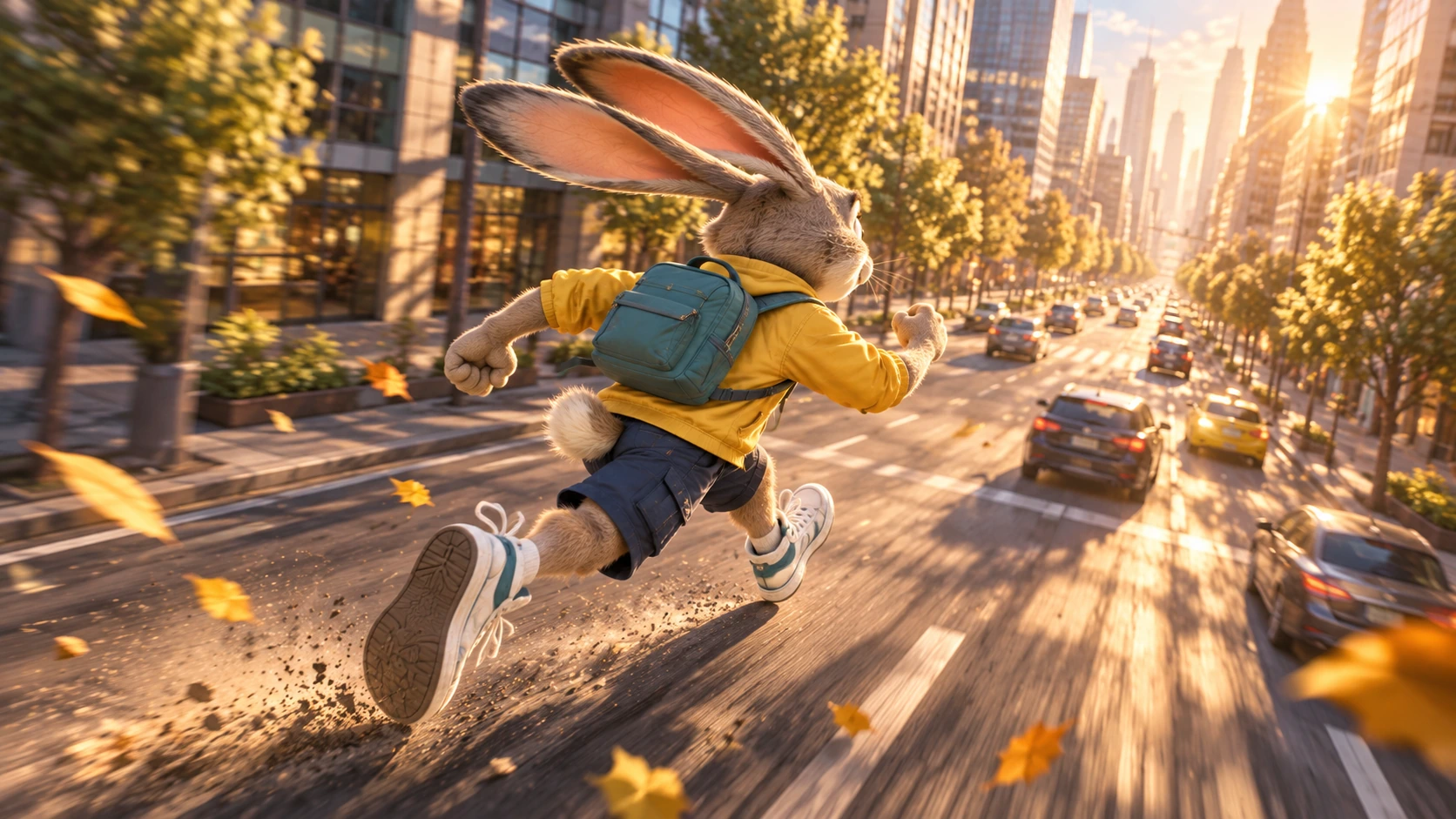
Compare the two stills before moving on. Check ear length, head proportions, sneaker shapes, jacket color, and backpack placement. Correct a visible difference in the reference image before asking a video model to carry it through motion.
Describe the Running Action and Camera Separately
Use Video Prompt Builder to describe the character's action and what changes in the environment. Use Camera Movement to choose how the camera follows that action. A clear separation helps you avoid instructions that compete with each other.
For the front shot, ask for a camera that tracks backward with the runner and keeps a steady distance. The rabbit should remain approximately centered while the street moves past him. Describe the arm swing, foot placement, ear movement, and backpack bounce in restrained terms.
Example running-animation prompt
“Use the approved rabbit-courier image as the visual reference. In one continuous shot, he runs forward along the city boulevard with alternating strides, natural arm swings, and a focused cheerful expression. His long ears trail backward and the small teal backpack bounces gently with his movement. Preserve his slate-gray fur, cream muzzle, mustard jacket, navy shorts, and white sneakers. Track the camera backward at a steady distance from a low front three-quarter position, keeping his full body near the center of the frame. Maintain consistent sunlight and city perspective. Keep the feet interacting with the pavement and the limbs clearly separated. No cuts, extra limbs, costume changes, text, or logos.”
For the rear angle, update the camera instruction to follow from an elevated rear three-quarter position. Keep the character description and intended route. Use the second approved still if your selected tool accepts it as an image reference.
Set duration, aspect ratio, and output options in the generation interface. Choose a short test that your selected model supports, then review the full clip before extending the scene or increasing output quality.
Generate, Review, and Edit the Cartoon
Copy your O4Prompts instructions into the image or video engine you prefer. For one practical route, Higgsfield's official Seedance guide explains image-to-video generation using a reference image and a motion prompt. Available models, input modes, settings, and account access can vary, so check the current choices in your interface.
Review the running cycle across the entire clip. Look for feet sliding across the ground, a backpack that changes shape, ears that merge into the head, or limbs that appear and disappear. Pause around fast changes in pose rather than judging only the opening frame.
Make a focused revision when something goes wrong. If the stride is unstable, simplify the running action. If the framing drifts, clarify the camera distance and centered composition. If the costume changes, strengthen the reference and repeat the affected visual detail.
Bring approved clips into your editor and cut around clear actions. Keep sunlight, apparent running speed, and screen direction coherent between shots. Add footsteps, fabric movement, and light city ambience where they support the scene. Let the final slowdown establish that the run has a destination.
- Write the brief. Define the runner, location, goal, and ending.
- Prepare the prompts. Use O4Prompts to organize appearance, framing, lighting, action, and camera behavior.
- Approve the stills. Create the centered hero and a different camera angle in your chosen image tool.
- Animate the references. Provide supported images and copy the motion prompts into your selected video tool.
- Review and assemble. Correct visible problems, choose the strongest clips, and complete the edit with sound.
Save the approved images, prompts, and settings together. That small production record gives the next scene a useful starting point, especially when you want to reuse the courier in another location.
Frequently Asked Questions
Can O4Prompts generate the cartoon images or animation?
O4Prompts creates the prompts. Generate the still images and video in compatible external tools, then assemble the approved clips in an editor.
How do I keep the running character centered?
Approve a centered reference with clear space around the full body, then describe a camera that follows at a steady distance. Check the clip for framing drift and revise the specific issue.
Should every shot use the same camera angle?
Give each view a purpose. The low front angle shows expression and stride; the elevated rear angle reveals the route and backpack. Preserve character details and lighting across both.
What should I fix first when the animation looks wrong?
Start with the reference pose and the main action. A readable body position and a modest motion brief give you clearer problems to evaluate than a shot that changes action, camera, costume, and location at once.
Build one character and one strong running moment first. Use O4Prompts to prepare the visual direction, develop the approved frames in your preferred generation tools, and give the final cartoon a clear beginning and ending.